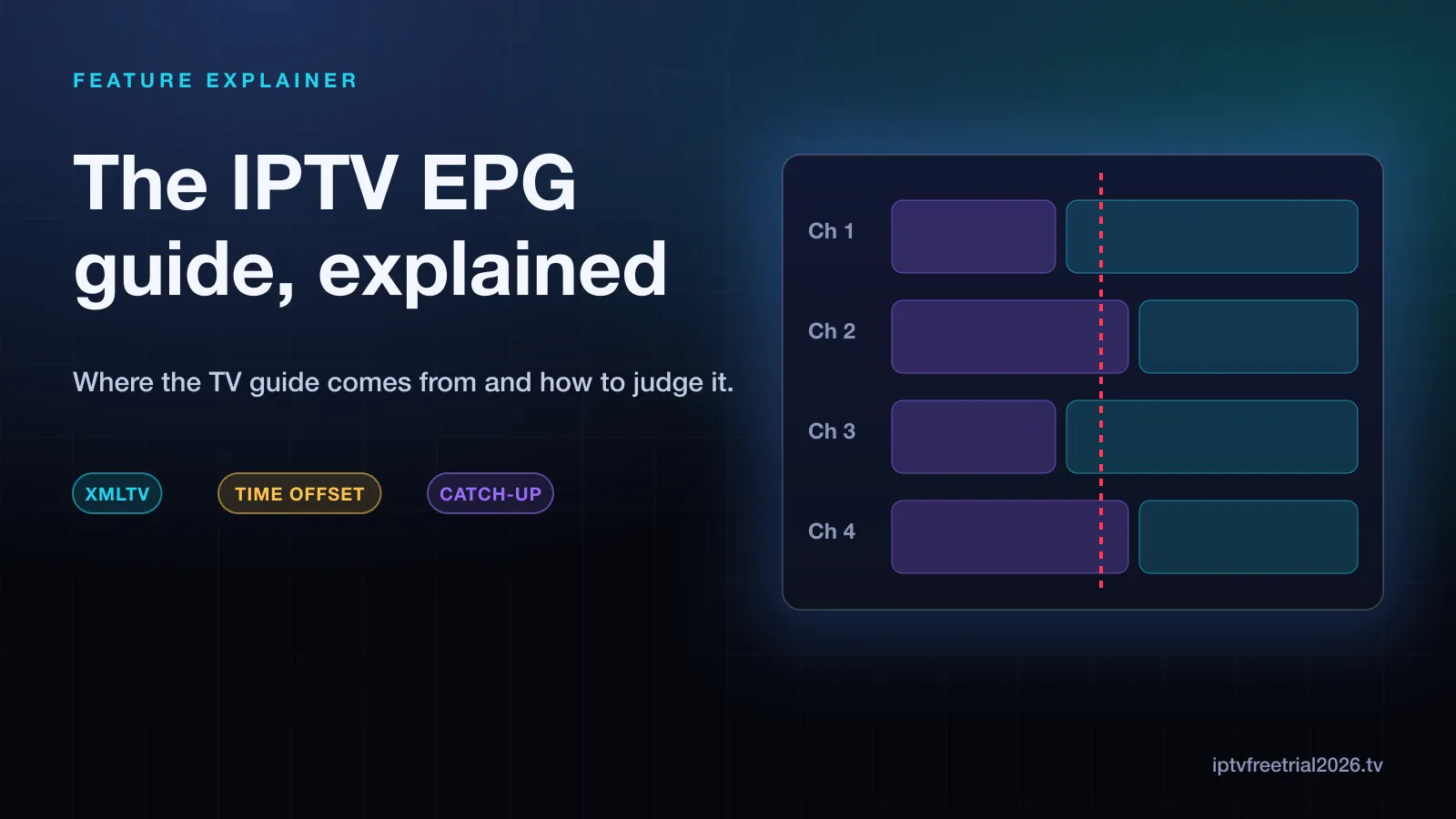
The IPTV EPG guide explained: the EPG (electronic program guide) is the TV grid in your player showing what is on now, next and earlier. The listings come from a separate data file, usually in XMLTV format, supplied by your provider or a third party. Your player downloads that file, matches each channel to its listings by an ID, shifts the times to your timezone and draws the grid. When any of those steps goes wrong, the guide looks blank or shows the wrong times.
What the EPG actually is
On cable, the guide is built into the box and you never think about it. On IPTV, the channels and the guide arrive separately. The playlist (an M3U link or Xtream Codes login) tells your player where each stream lives. The EPG is a second source that describes what is playing on those streams: program titles, start and end times, and often a short description, episode number and artwork.
That split explains most guide oddities. A channel can play perfectly while its guide row is empty, because the two pieces of data never met.
Where EPG data comes from
- Provider-supplied guide. With an Xtream Codes login, the guide usually loads automatically from the same server. With an M3U link, the provider often gives a separate EPG URL to paste into the player.
- XMLTV files. XMLTV is the common open format for TV listings: a long file listing channels by ID and every program with its start and stop time. Most players read it.
- Third-party guide sources. Some people add an extra XMLTV source to fill gaps. This works only if the channel IDs line up with the playlist.
How a player turns data into a guide
Every player follows roughly the same five steps, shown below. Knowing them makes guide problems much easier to place.
- Guide data. The player is given an EPG source — automatically or as a URL you paste in.
- Download. The player fetches the file and stores it, which is why the first load can take a minute or two.
- Match IDs. Each channel in the playlist carries an ID (often called tvg-id). The player pairs it with the same ID in the guide file. No match, no listings.
- Shift time. Guide times are stored with a timezone. If the player or the file gets it wrong, everything is off by the same number of hours.
- Show the grid. Past programs appear on the left (and can be replayed where catch-up exists), the current show is highlighted, and future listings follow.
Timezones and the EPG offset
If every program on every channel is out by exactly one or more hours, the guide data is fine — the timezone is not. Most dedicated players have an EPG time offsetor timeshift setting that moves the whole guide forward or back. Check the device's own time and timezone first, since a wrong clock on the TV or streaming stick causes the same symptom. Daylight saving changes in March and November are a common moment for this to appear.
If only some channels are wrong, the issue is the channel's own listings or ID match, not your offset. Changing the offset would fix those channels and break the rest.
How players display the guide
The same guide data can look very different depending on the player:
- Full grid. Channels down the side, times across the top, like a cable guide. Dedicated players such as TiviMate are built around this view.
- Now and next. A compact strip showing the current and following program when you change channel. Useful for quick browsing.
- Per-channel list. Some apps show the schedule for one channel at a time, which works on phones but is slower for browsing a whole lineup.
- No guide. General media players such as VLC show the channel list only.
Most players also let you choose how many days of past and future listings to keep. Keeping fewer days makes the guide load faster on small devices such as streaming sticks.
What makes a guide good or bad
Guide quality depends on two things: the source data and the matching. A good source has accurate times, descriptions and several days of listings. Good matching means the channel IDs in the playlist line up with that source, so nearly every channel gets its row filled. A service can have strong streams and a weak guide, or the reverse, so judge them separately.
Catch-up starts in the guide
On channels that support catch-up, the EPG is how you reach it: scroll left in the grid to a program that already aired and select it to replay. That makes guide accuracy matter twice — a wrong time means a replay that starts in the middle of the wrong show. Our guide to replaying shows with catch-up TV explains what to expect from it.
How to judge EPG quality during a trial
A guide is one of the clearest quality signals in a service, and you can check it in minutes:
- Coverage. Scroll through the channels you watch most. How many have listings, not just the channel name?
- Accuracy. Open five channels and compare what is playing with what the guide says is on.
- Depth. How many days ahead does it show? Are there descriptions and episode details, or titles only?
- Past listings. Scroll back. If catch-up matters to you, check that recent programs are listed and replayable.
- Speed. Note how long the guide takes to load and scroll on your device.
Our no-card 24-hour trial gives you time to run all of these checks on your own TV before deciding.
When the guide is broken
This page explains how the EPG works. If yours is blank, stuck or showing the wrong times right now, the fixes for an IPTV EPG that is not working walk through each cause in order, from refreshing the guide to correcting the offset. For player-specific setup screens, the IPTV installation walkthroughs cover where the EPG settings sit on each device.
Frequently asked questions
What does EPG stand for?
EPG stands for electronic program guide. It is the on-screen TV guide that shows what is playing now and next on each channel, usually as a grid with channels down the side and times across the top.
Does every IPTV player show an EPG?
No. Dedicated IPTV players such as TiviMate and IPTV Smarters show a guide grid. General media players such as VLC can play the channels from an M3U link but do not show a full TV guide.
How often does the EPG update?
Most players refresh the guide on a schedule you can set, often once a day, and when the app starts. If listings look stale, a manual update from the player's settings usually fixes it.
Why do some channels have no guide data?
Usually because the channel in the playlist has no matching ID in the guide file, or the guide source simply does not cover that channel. Smaller or regional channels are the most likely to be missing.